Go to the U of M home page

Thursday, June 15, 2017

Effective Dates in Student Program/Plan: always use the first day of the term

When adding a Plan Change (PLNC) row or Data Change (DATA) row in Student Program/Plan, always use the first day of the term.

Why does it matter?

  • Your effective date tells PeopleSoft which term to make your change.  
  • Registration, financial aid, and the National Student Clearinghouse rely on accurate dates.
  • It helps other people read the page more readily.


Tip: you can find the first day of the term dates by using the look-up button next to the Admit Term field. (Just click the “x” to close the box when you are finished looking.)


Remember, always use the first day of the term!

6 things class schedulers should know about instructor assignment in CCS

  1.  Approve access is required to enter and submit grades.
  2. Grade access allows you to enter grades, but not submit them.
  3. Multiple component classes need an instructor assigned to each component. 
  4. Your primary instructor on a non-graded Lecture section cannot enter grades unless they are also the instructor for the Lab and/or Discussion sections.
  5. The Print checkbox determines if an instructor (or proxy) is listed on the Class Search.
  6. The Classes Missing Instructor Information query will find classes with enrollment but without instructors. This is located in the Reporting Center.

Thursday, May 18, 2017

Improvement to CCS session code lookup

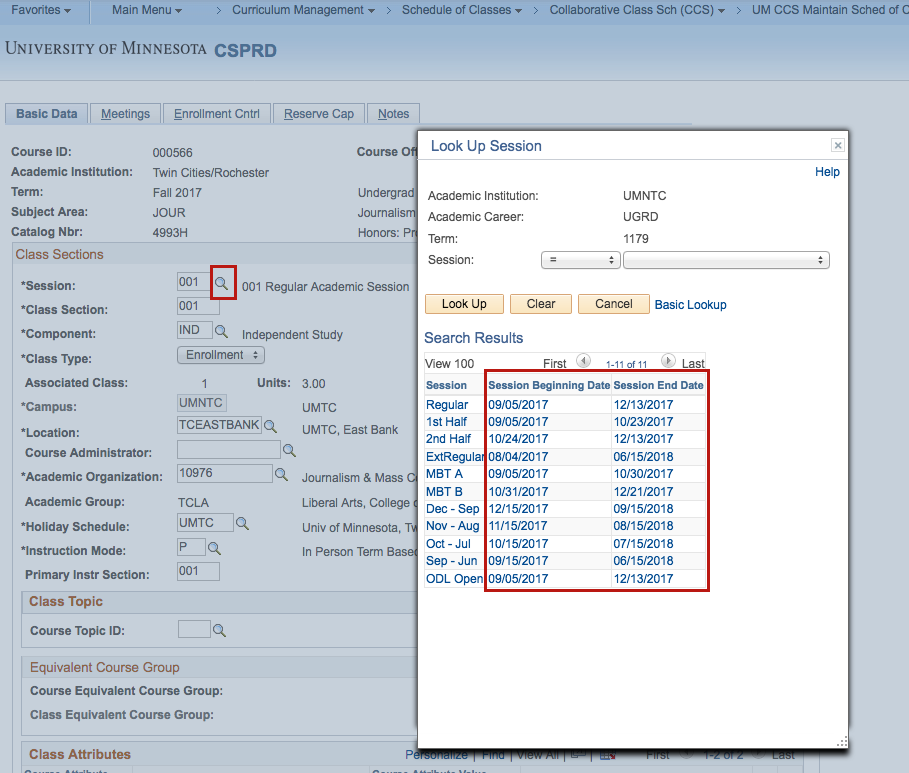
Session beginning and end dates are now displayed in Collaborative Class Scheduling (CCS) by using the session lookup button (magnifying glass icon). This makes it easier for CCS users to choose the correct session to schedule the class into.

Improvement to Academic Plan lookup on Student Program/Plan

Users who update the Student Program/Plan page in PeopleSoft can now search for Academic Plan codes by description (i.e., title of the major, minor, or certificate plan) from the Student Program/Plan page. On the Student Plan tab, click on the lookup button (magnifying glass icon) next to the Academic Plan code field and use the Description field to search.

Keep in mind that this search is case sensitive and that capital letters are used in plan titles. For example, you may search “Spanish” to return a list of all plans that begin with that word. However, searching lowercase “spanish” may not return results.

NR grades posted for spring 2017

Yesterday, May 17, 2017, was the deadline to submit grades for the spring 2017 regular academic session and second half term.

A symbol of NR (Not Reported) has been added to the grade roster and student’s record for any grade due but not entered. Missing grades can negatively affect students’ academic standing, financial aid, scholarship, job, or continued education opportunities. To change the NR to a final grade, instructors and proxies responsible for grades entry should follow the instructions on the How to Change a Grade PDF. Now that the grading deadline has passed, grades cannot be uploaded from a spreadsheet or from Moodle.

For more information or questions, please refer to the Grade changes FAQ or contact srhelp@umn.edu.

Quick Tip: How to open multiple PeopleSoft windows

Did you know that you can look at multiple PeopleSoft windows at the same time? Just click on the “New Window” link that appears in the upper right corner of most PeopleSoft pages.

How to cancel a class section in CCS

Collaborative Class Scheduling (CCS) users who need to cancel a class do so following the path: Curriculum Management > Schedule of Classes > Collaborative Class Sch (CCS) > UM CCS Maintain Sched of Class. Then, on The Enrollment Control Tab, select the Class Status “Canceled,” and Save. Keep in mind that the rest of the process depends on the timing of CCS.

During CCS Open Initial Build, schedulers cancel class sections that will not be offered. OCM Scheduling will delete canceled classes the next day.

During CCS Open Emergent Changes, schedulers cancel classes that will not be offered. OCM Scheduling will delete canceled classes upon request.

Once students register for a class, OCM Scheduling will cancel the class by request, dropping any students enrolled. Schedulers, please contact the students first.

Note: Please do not change the Class Type to Non-Enroll or use the Class Status of Stop Further Enrollment, as these will cause you scheduling problems in future terms.